JAUNTY / IMPORT GUIDE
GETTING STARTED / 1.2.6
From a Portal screenshot to your timetable.
Bring your timetable into Jaunty, then check the details before you add the courses. This guide covers screenshot import in version 1.2.6.
01 / 1.2.6
Choose readable screenshots
Save a clear screenshot from your university or college Portal. Keep the course code, weekday, start and end times, and room visible. If the timetable spans several screens, capture each part with its headings.
Open the add-class flow in Jaunty and choose screenshot import. Tap Choose from Photos and select the images. Several screenshots can be selected together.
Screenshots are read on your iPhone. Text recognition works without the optional on-device AI model. The extra AI option needs a supported device and an available system model on iOS 26 or later.
02 / 1.2.6
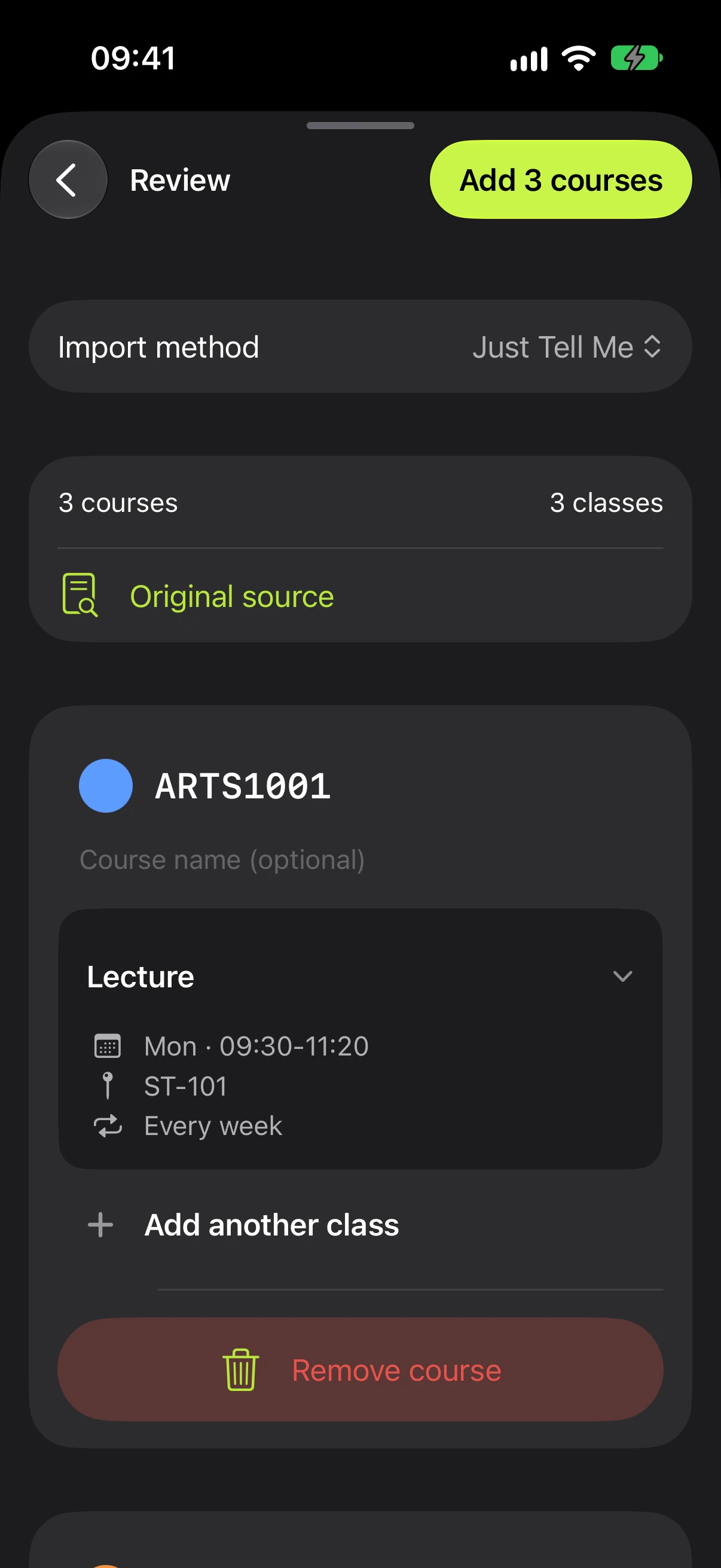
Check the import draft
The result is a draft. Compare every course with the Portal before saving, especially when columns, abbreviations or small text were difficult to read.
Use Original source to look back at the input. Check course codes, weekdays, start and end times, rooms, and which weeks each class repeats.
Correct the editable fields. Remove a course you do not want, or add a missing class to the correct course. Resolve missing codes, days and times before adding. Review any clash warning rather than assuming overlapping classes are correct.
03 / 1.2.6
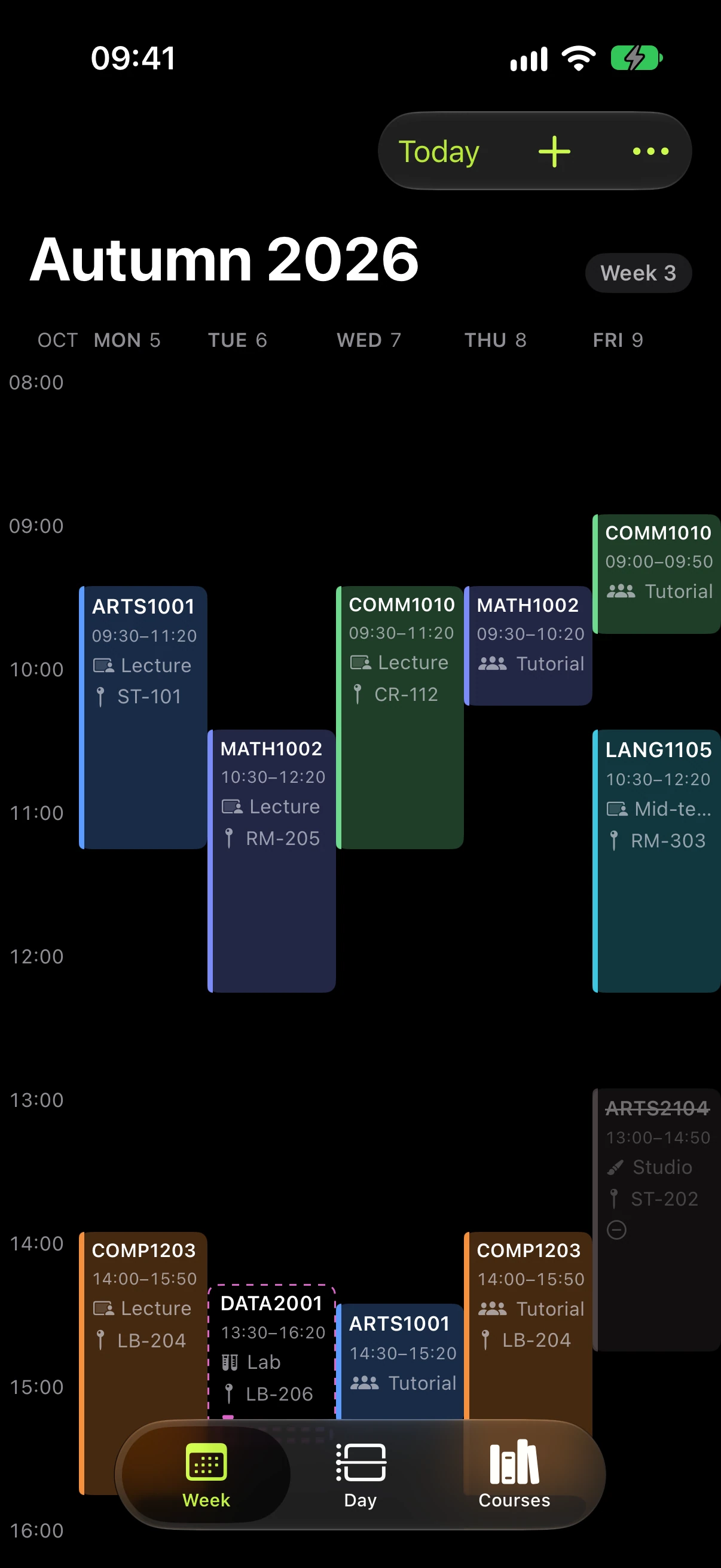
Add the courses and review your week
When the draft matches the source, use the add-courses button at the top. Its count tells you how many courses you are adding.
Open Week and Day to check the arrangement. Confirm that your semester dates and repeating weeks match the school’s timetable. Keep checking the official Portal for later changes; an imported screenshot represents what you selected at that time.
Need to enter everything yourself? Use manual or batch entry instead. You can also return to class details to correct a time or room.
04 / 1.2.6
When a screenshot needs another look
Try a clearer image with complete row and column headings. Split a very long timetable into readable screenshots, or switch to manual entry when the source cannot be read reliably.
If a problem repeats, email support@jauntyhk.app with your app version, iOS version and the steps that caused it. Hide student numbers, names and private timetable details before sharing an image.
For backups, device requirements and current issues, use the support handbook. The privacy policy explains local processing and your data choices.